
Some customers may take advantage of a restaurant's online ordering or act in fraudulent ways. In these cases, Direct Ordering allows these customers to be blocked in a few different ways.
Blocking a Customer
Step 1: Go to Manage Customers under Customers.
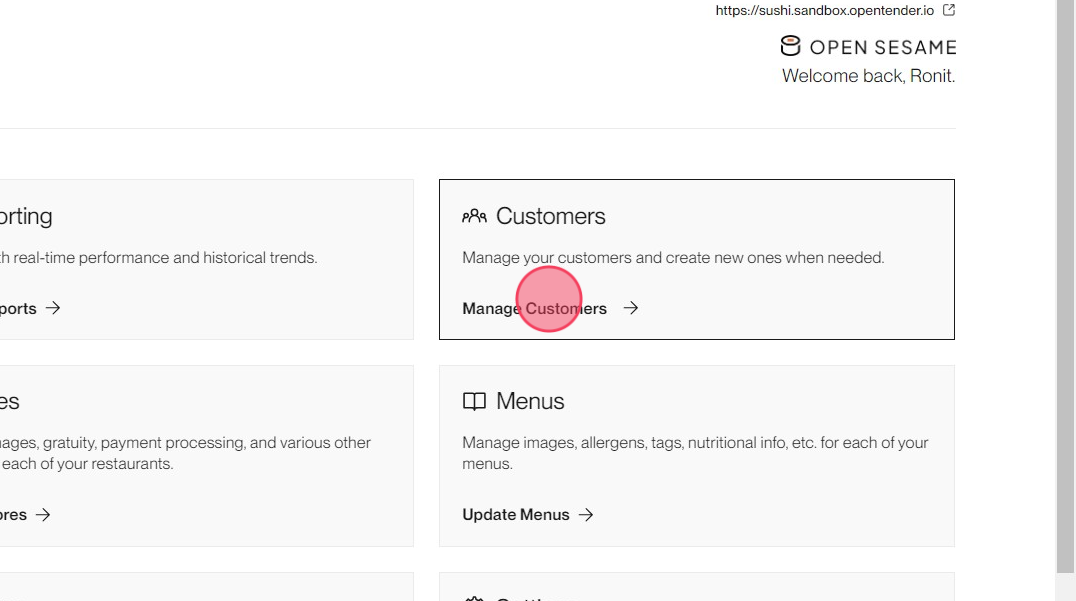
Step 2: Click the name of the customer to block.

Step 3: Click Block Customer at the top of the page.
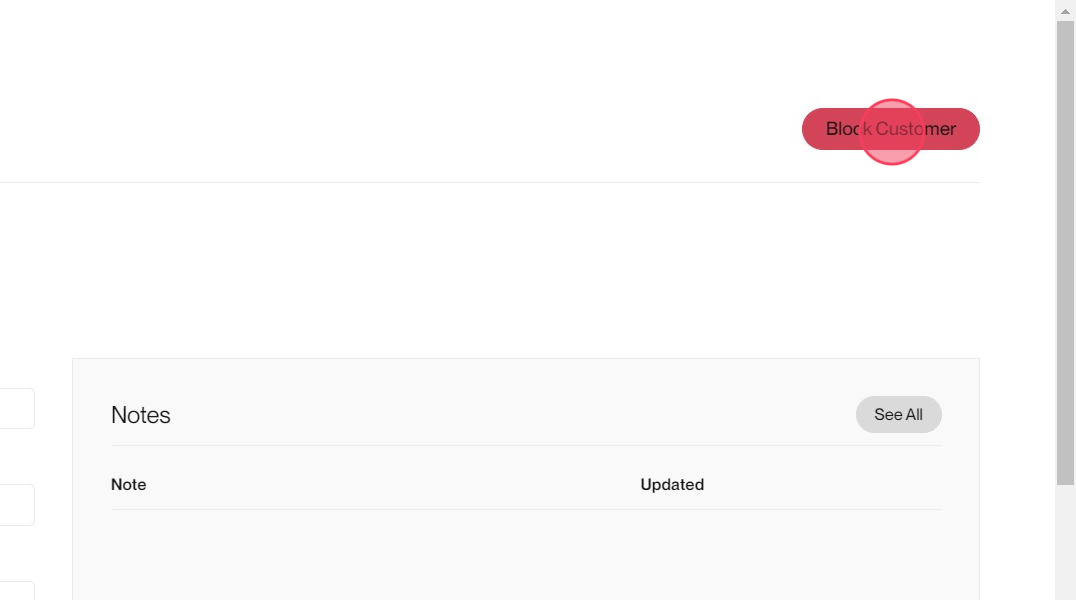
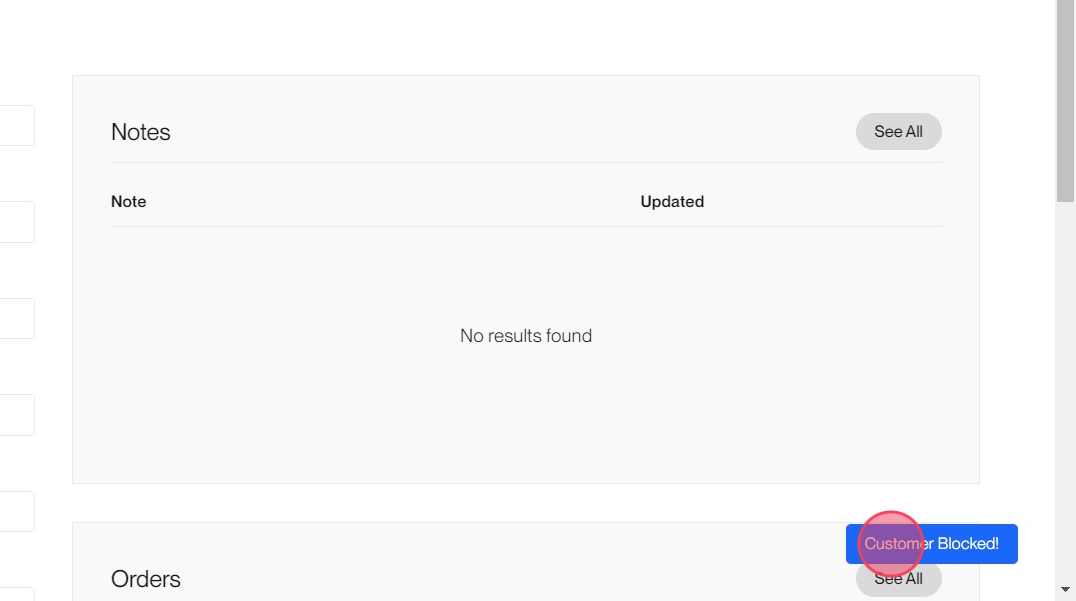
A "Customer Blocked!" notice appears once the customer is blocked.
Viewing Blocked Customers
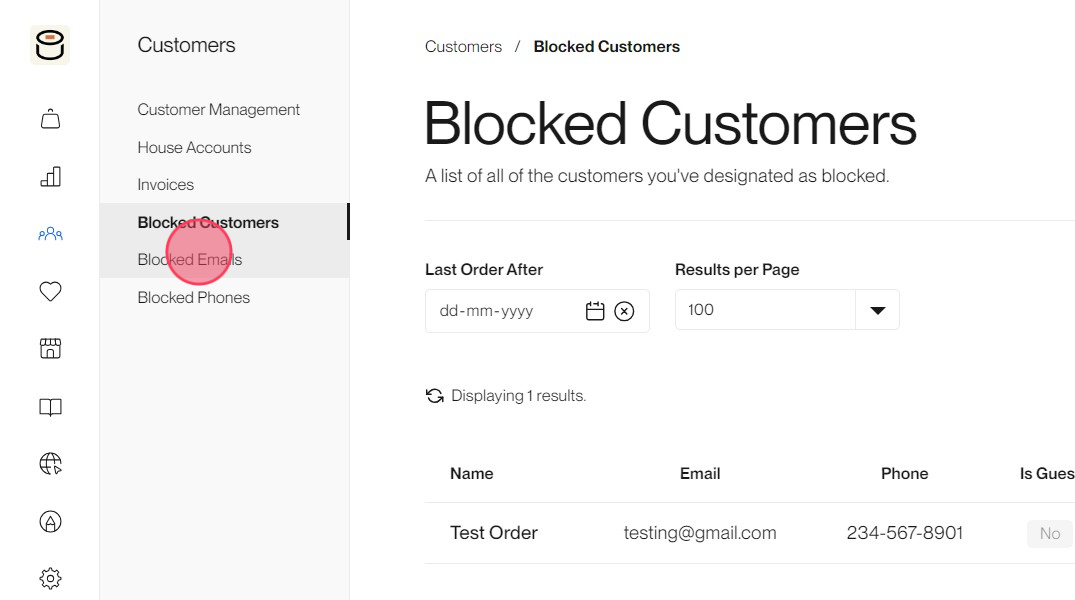
To view blocked customers, go to Customers and click Blocked Customers.
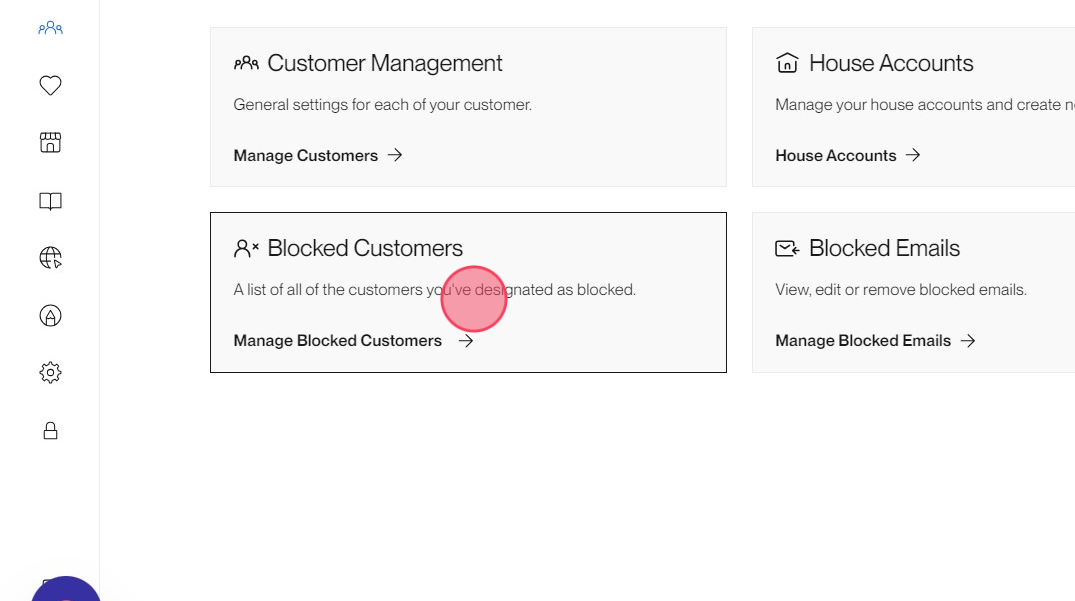
A list of blocked customers is generated.
Blocked Emails
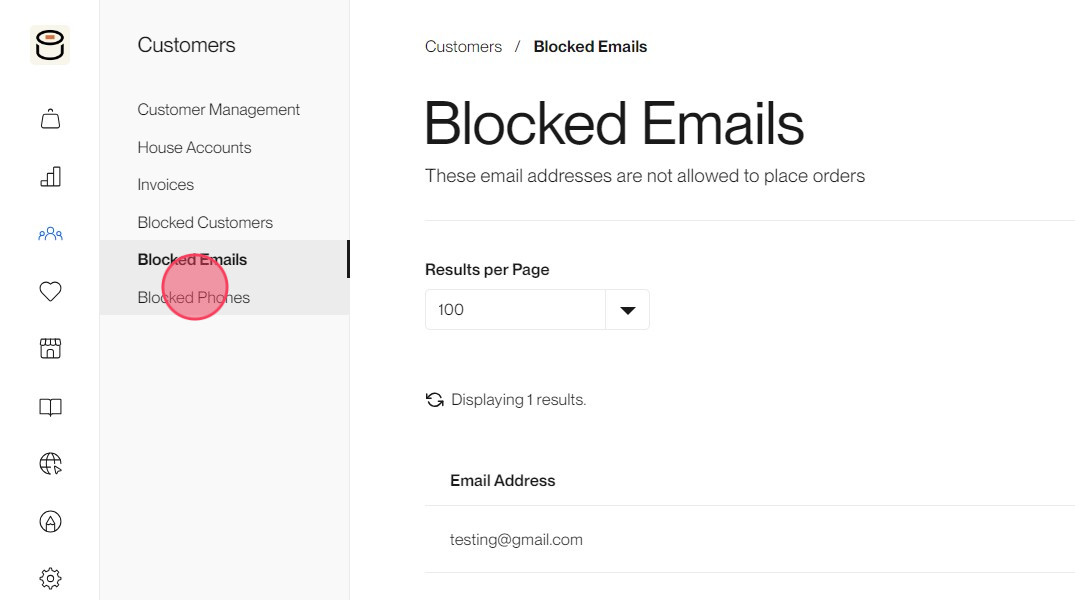
The list of customers blocked by email address is available by clicking Blocked Emails.
Blocked Phones
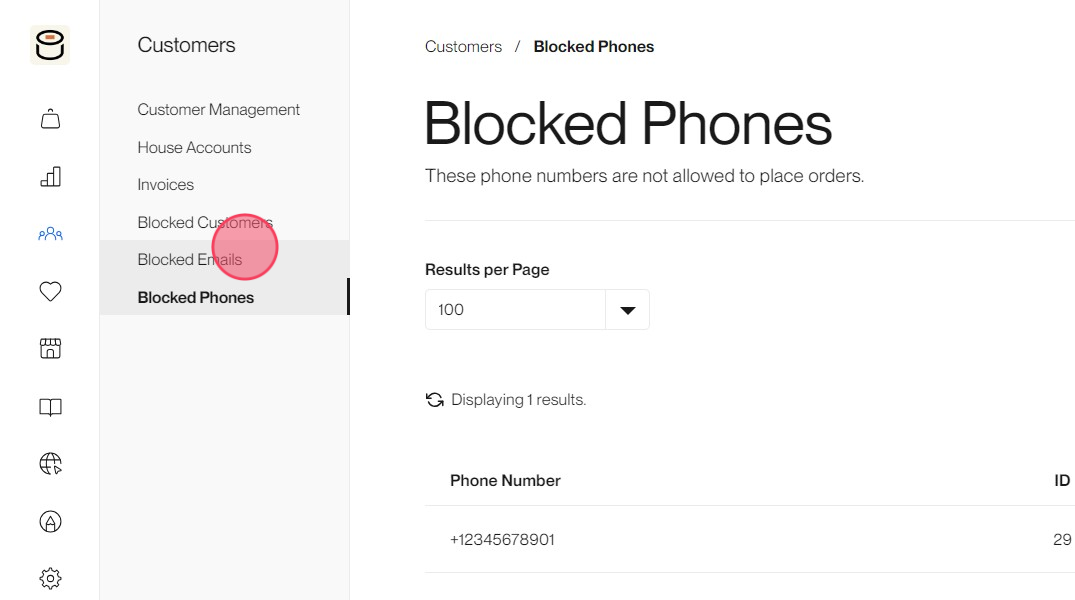
The list of customers blocked by phone number is available by clicking Blocked Phones.
Unblocking a Customer
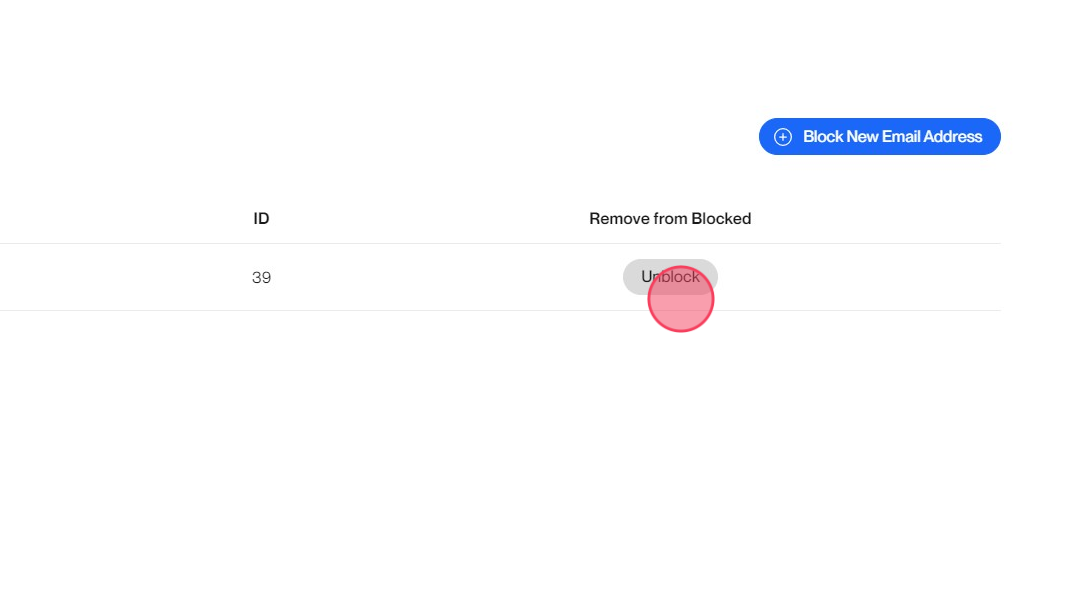
A customer can be unblocked by clicking the Unblock button next to the customer on the Blocked Phones or Blocked Emails page.
A customer can also be unblocked from the customer record:
Step 1: Go to Manage Customers under Customers.
Step 2: Click the customer to unblock.

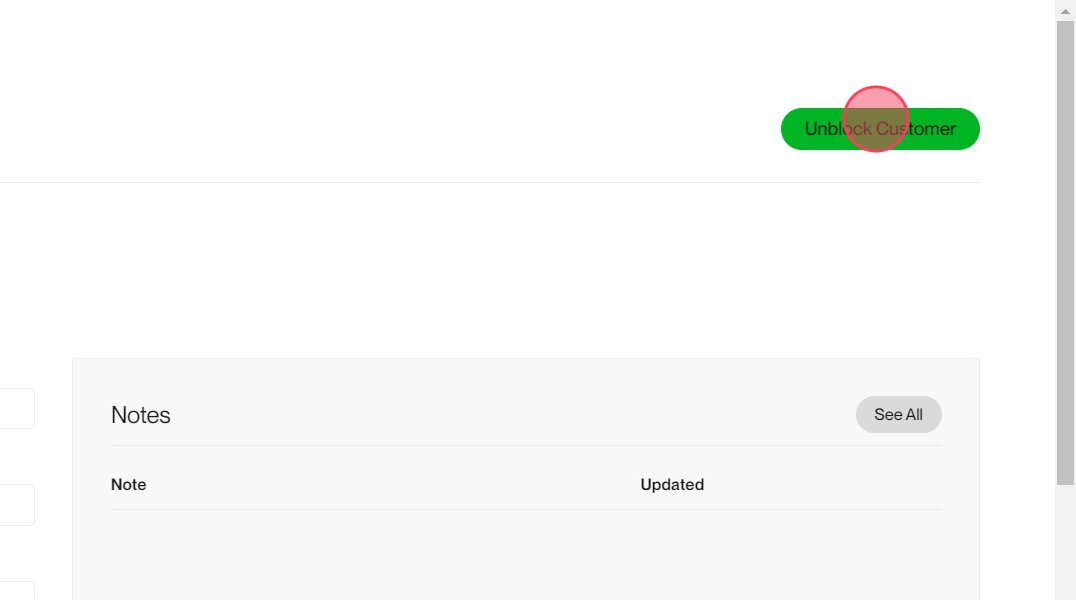
Step 3: Click Unblock Customer at the top of the page.
Comments
0 comments
Please sign in to leave a comment.